ResourceSpace Installation Guide
Follow the steps below to configure and deploy the ResourceSpace digital asset management application within Memora OS.
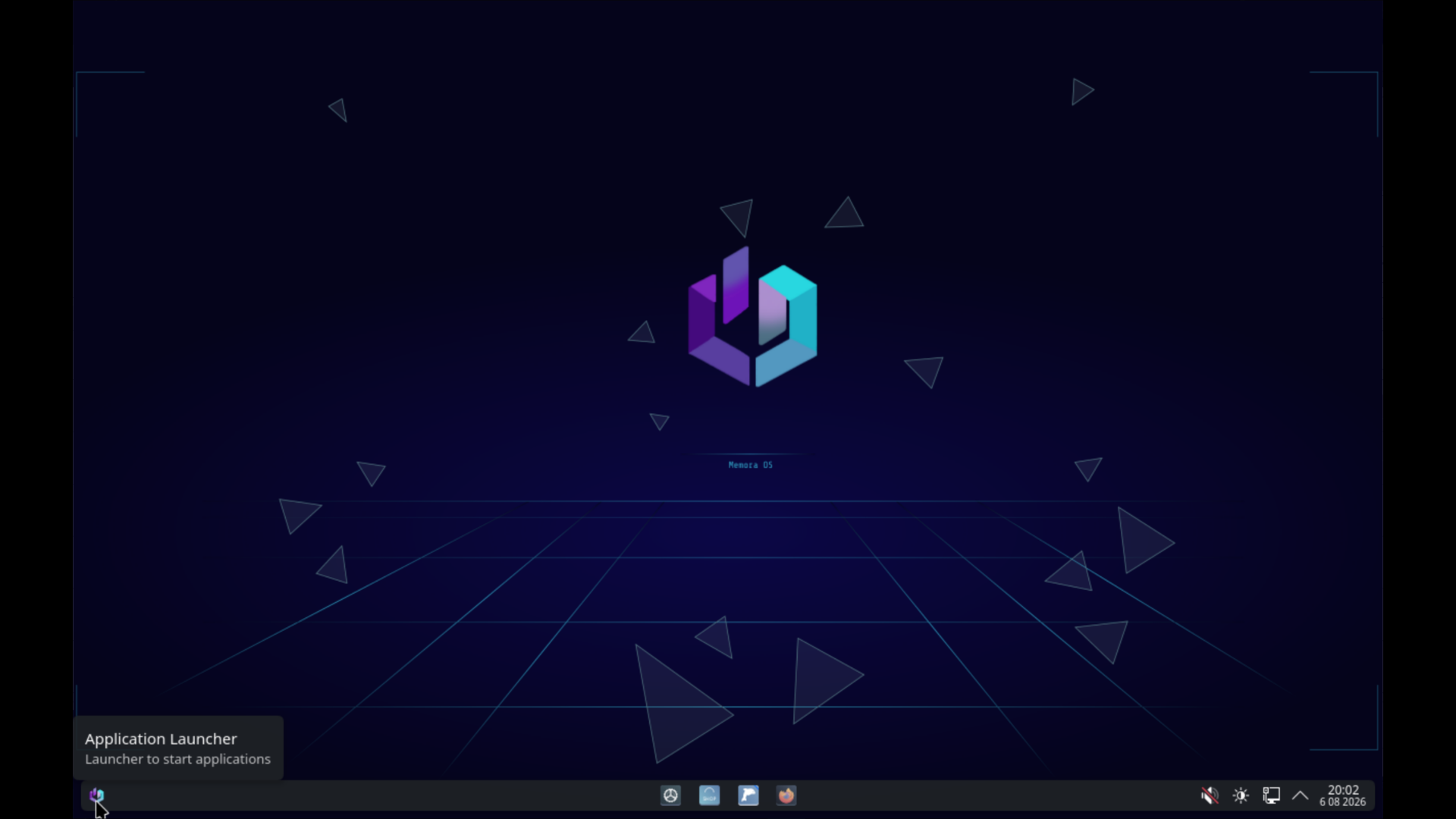
Step 1: Opening the Application Launcher
Click the button at the bottom-left corner of the desktop screen.
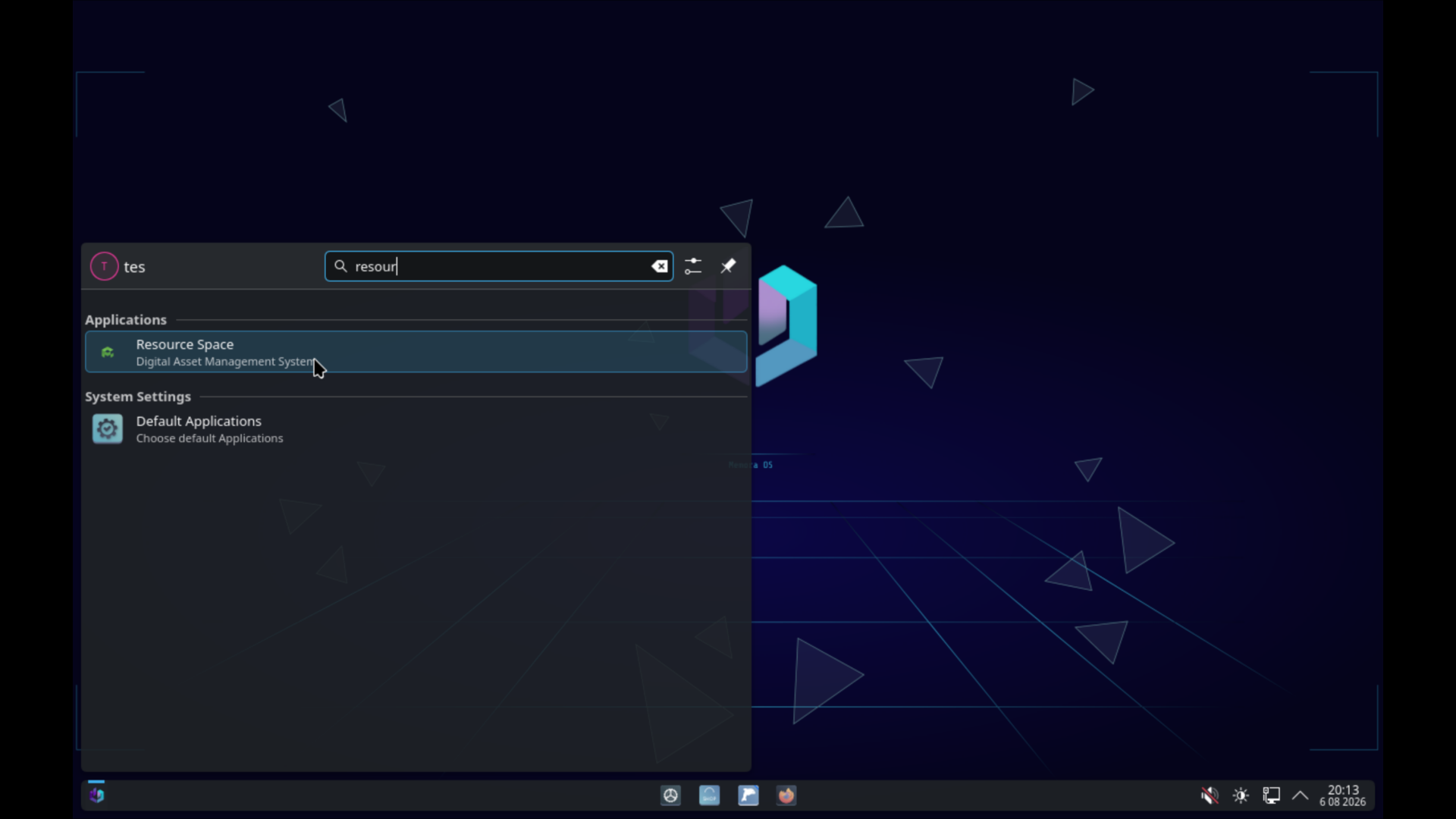
Step 2: Searching for ResourceSpace
Type resource space into the search bar, then click on the appearing application.
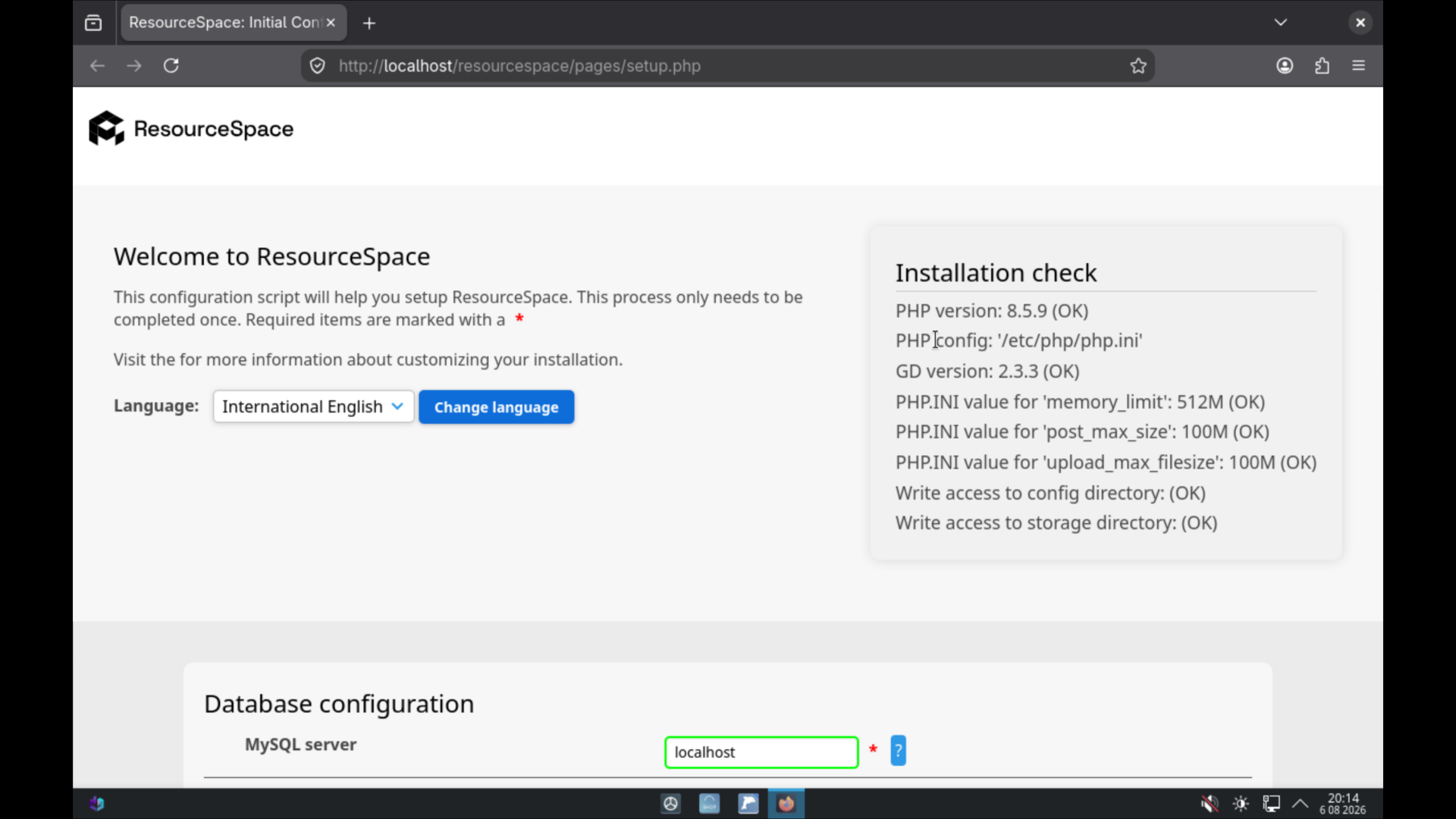
Step 3: Installation Welcome Page
You will see a screen like this; simply scroll down to proceed.
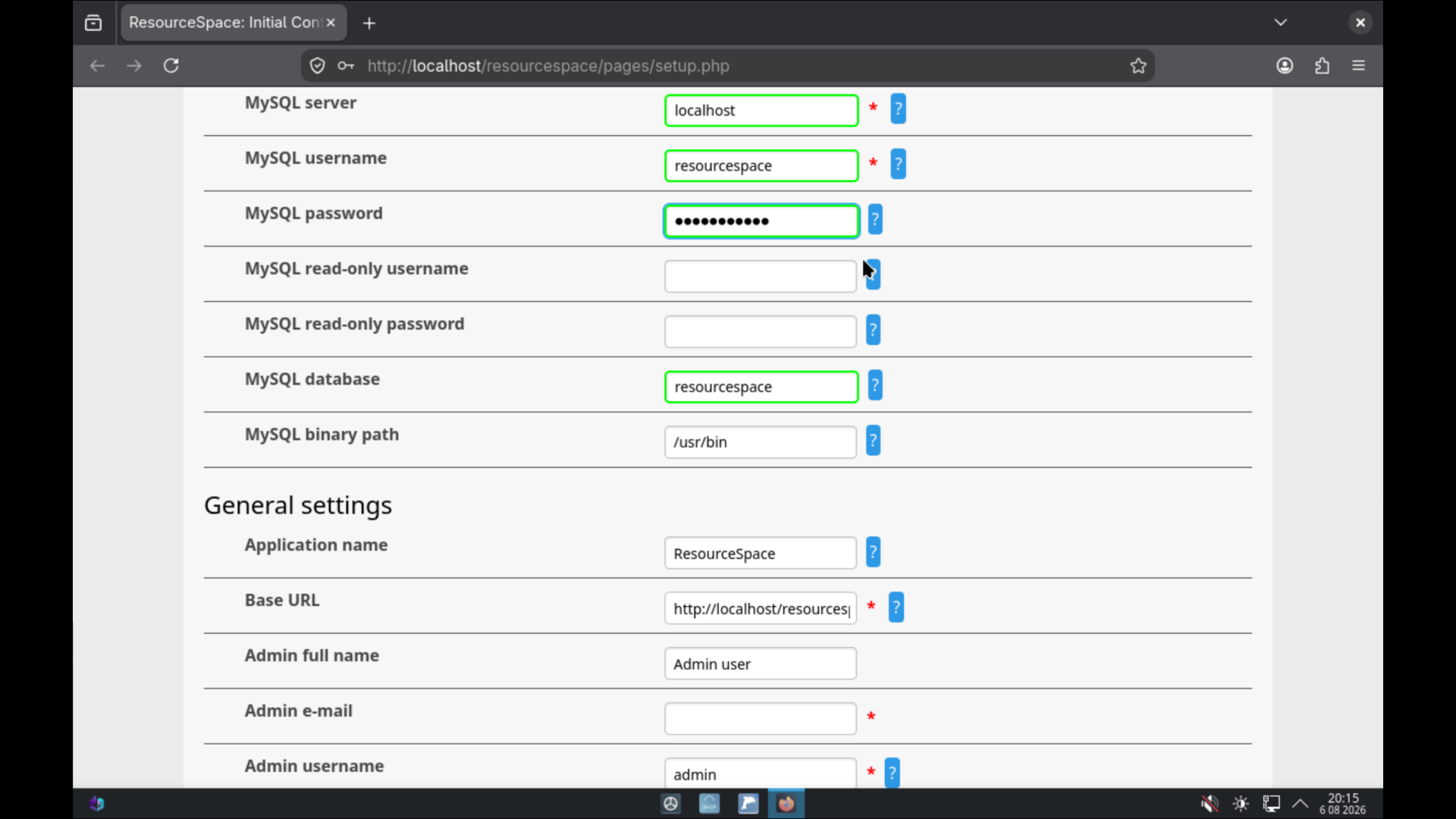
Step 4: Database Configuration
Enter resourcespace as the database username. We have already created it for you [username: resourcespace] [password: password123].
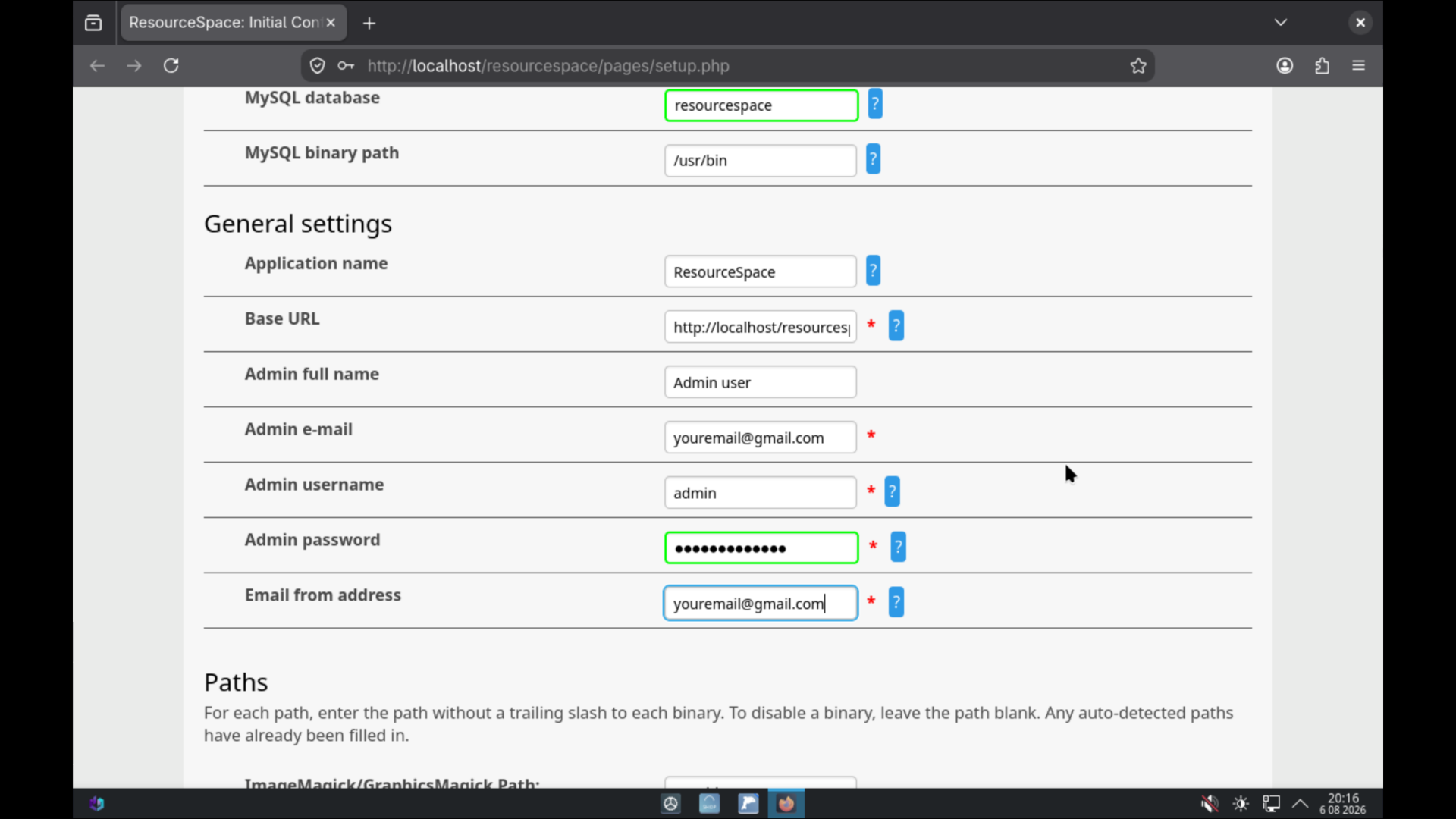
Step 5: General Settings
Fill in the admin-email, admin-username, admin-password, and emailfromaddress fields according to your preferences.
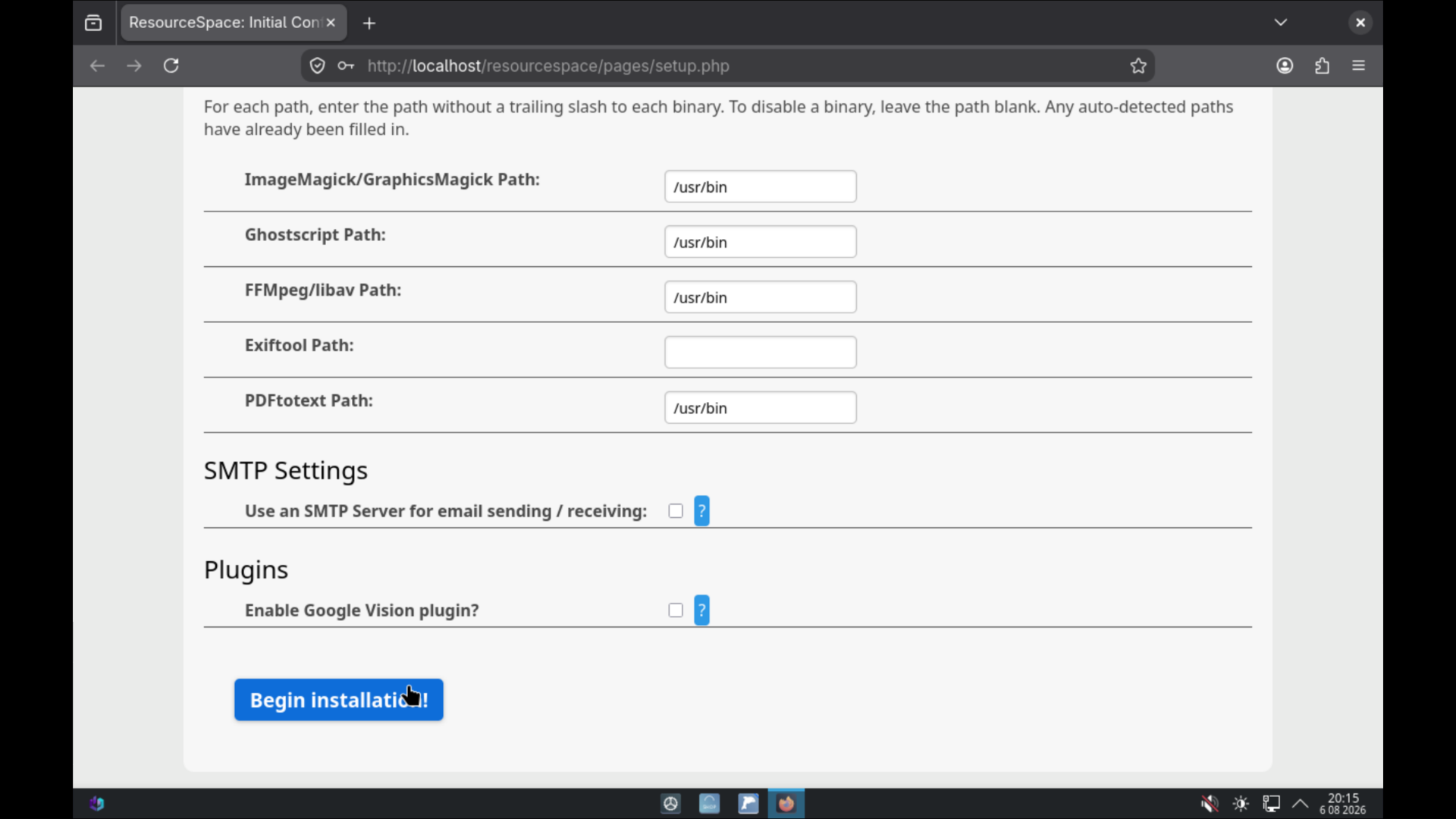
Step 6: Running the Installation
Scroll all the way down, then click the Begin installation button.
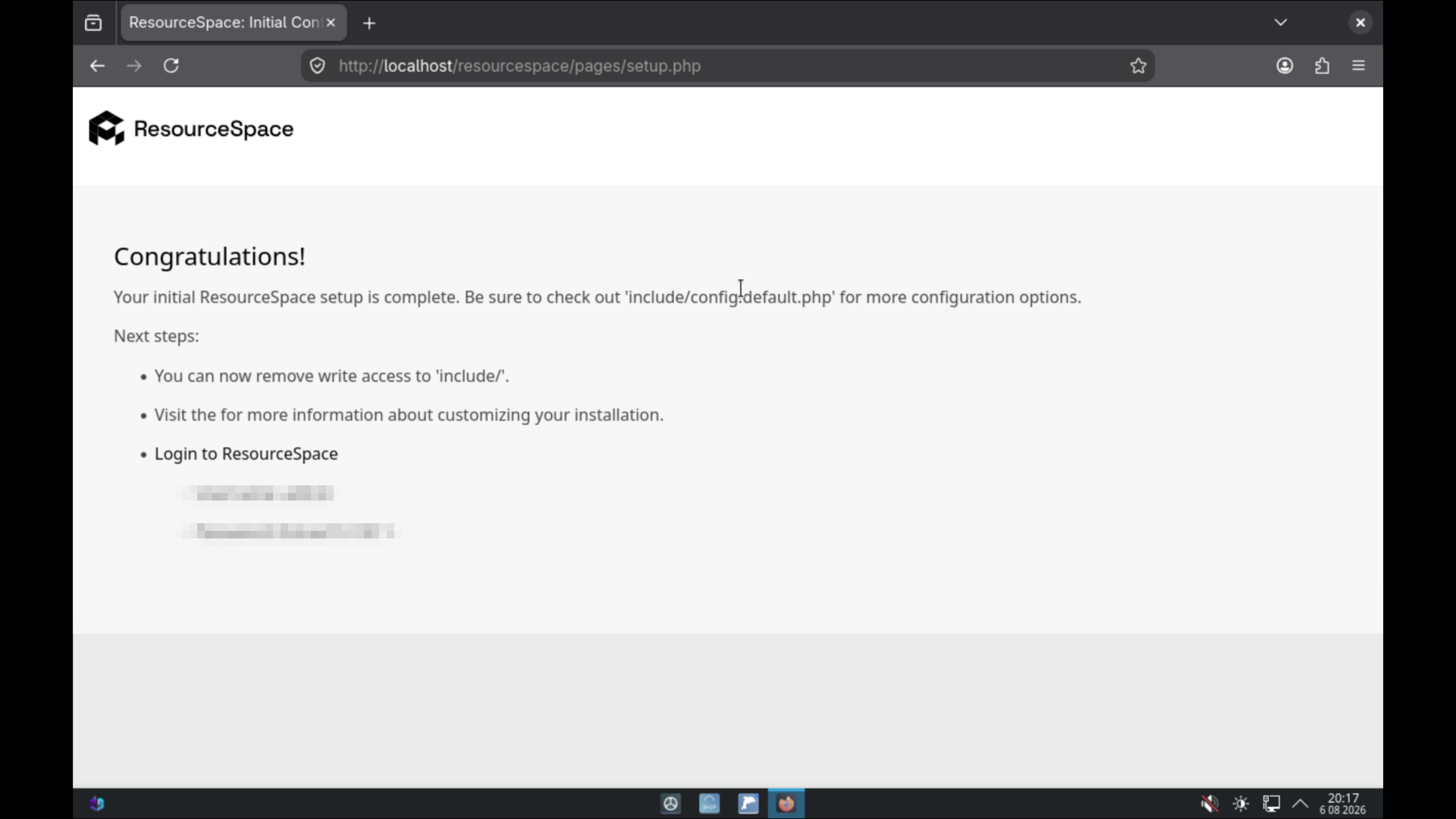
Step 7: Installation Complete Confirmation
If the screen appears like this, the initial ResourceSpace setup is finished.
Step 8: Logging into the Application
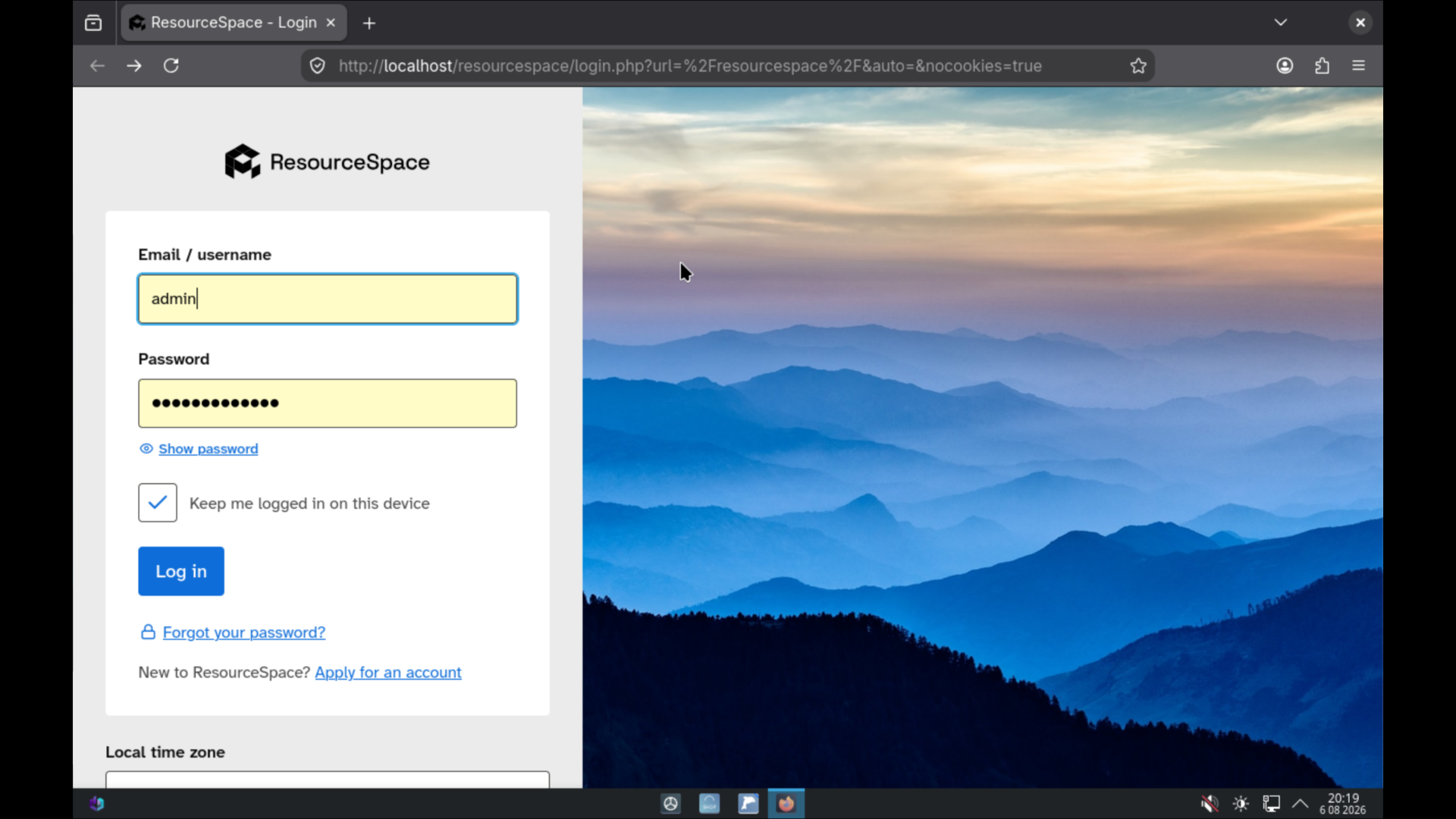
Close the application/browser tab, then repeat steps 1 and 2 to reopen ResourceSpace. Enter the administrator username and password you created earlier.
Step 9: Application Ready to Use
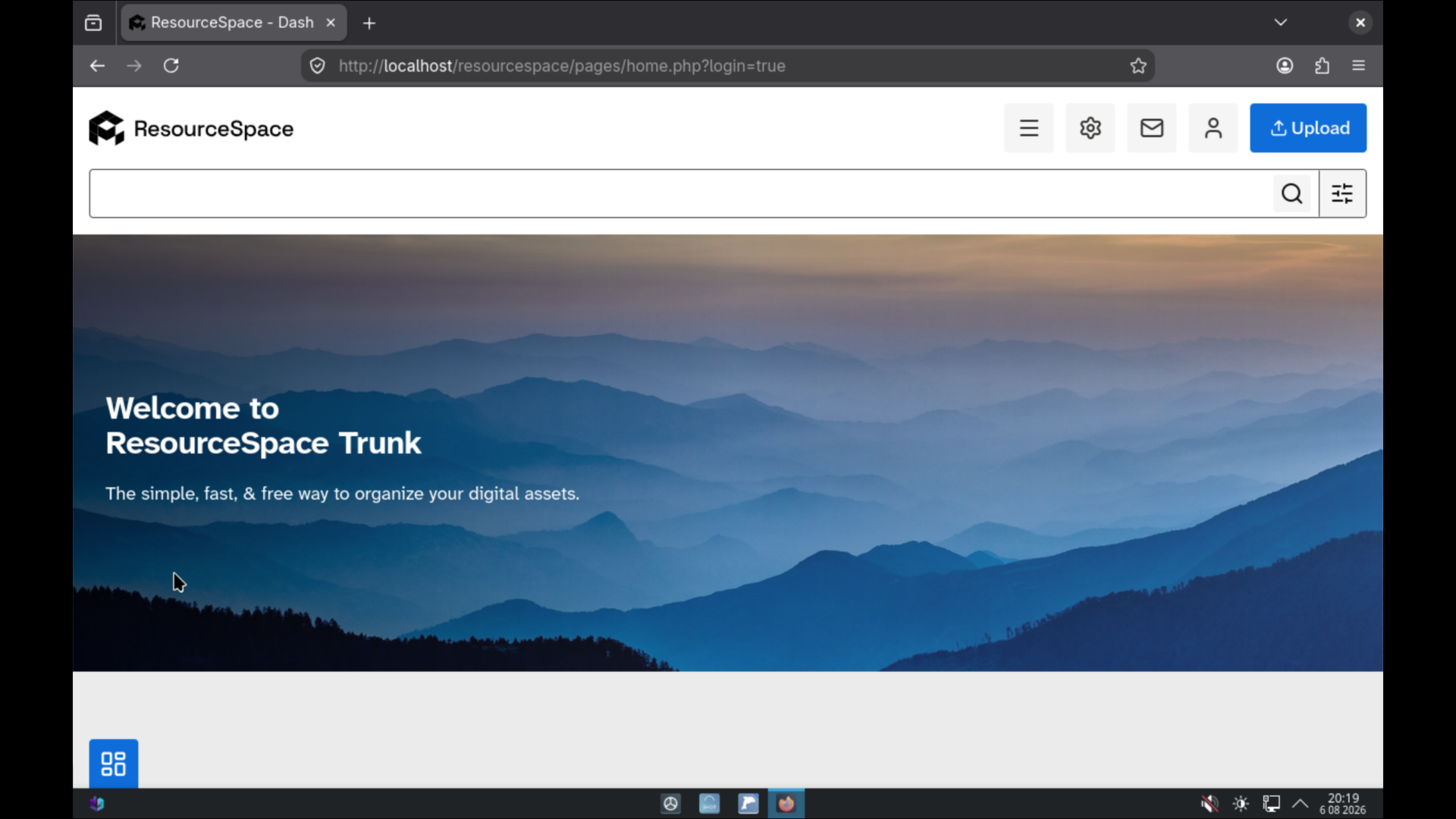
Once the dashboard layout looks like this, ResourceSpace has been successfully installed and is ready for use!